Microsoft Teams Security: Locking Down External Sharing in Teams and SharePoint
Microsoft Teams security for outside collaboration starts with SharePoint. Teams files live there, so SharePoint's sharing settings decide what guests, external chats, shared channels, and sharing links can actually expose.
Table of Contents
Four separate doors let people outside your company into Teams and SharePoint, and each one is controlled in a different admin center. Microsoft ships several of them wide open. Starting in late October 2026, one more opens by default, when file sharing turns on in Teams chats with other companies. Closing the doors in the right order keeps client work moving, and it's the collaboration layer of any data loss prevention program.
In late October 2026, Microsoft changes a default that a lot of admins set years ago and haven't looked at since. File sharing in external Teams chats, meaning chats with people at other companies, turns on for every Microsoft 365 tenant, and Teams also starts granting those outside participants access to the file automatically, without the sender changing a single permission. The rollout is scheduled to finish by late November, according to Microsoft's message center notice MC1479514.
Nothing will break when it lands. That's the problem.
Teams tends to get treated as a chat app with a few security toggles. Underneath, it's a front end for SharePoint and OneDrive. Every file posted in a channel is stored in a SharePoint site, and every file dropped into a chat is stored in the sender's OneDrive, so the question of who outside your company can see your data is really a SharePoint question. In a lot of tenants, those SharePoint settings were chosen by whoever clicked through setup years ago, and nobody has revisited them since.

How Many Ways Can Someone Outside Your Company Get Into Teams?
Four. Guest access adds an outside person to a team. External access lets them chat and meet with your staff. Shared channels bring them into a single channel, and SharePoint and OneDrive links skip Teams entirely and hand them a file directly.
Each door creates a different kind of identity, reaches different content, and is switched on or off somewhere different. That's the structural cause behind most confusion here. An admin locks down guest access in the Teams admin center, feels finished, and never opens the SharePoint sharing page where the more permissive setting has been sitting untouched since the tenant was created.
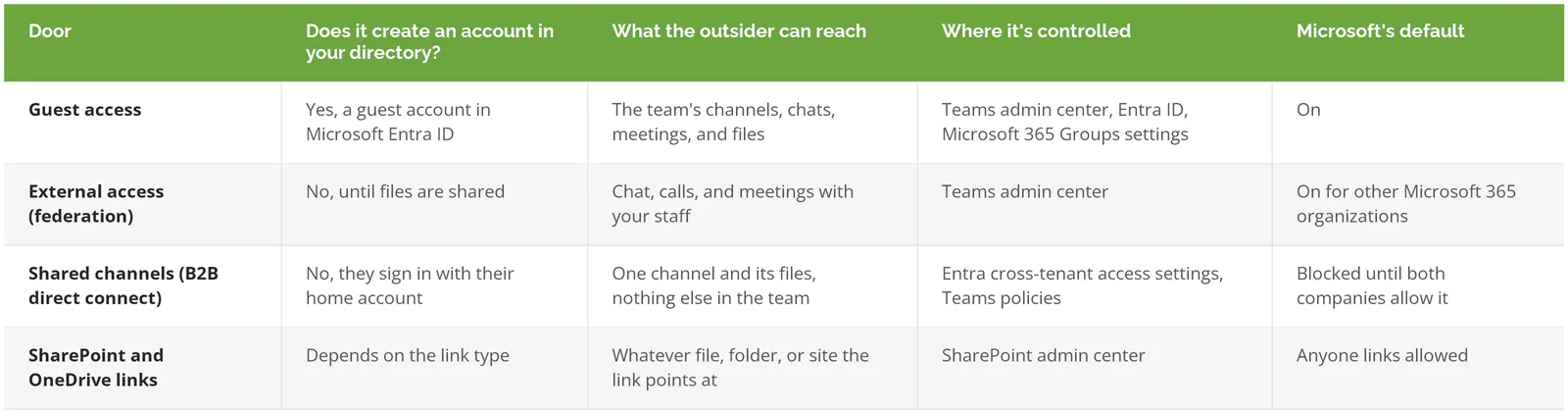
A guest account is the one that lingers. According to Microsoft's Teams guest access documentation, a guest who leaves a team still has an account in your directory until an admin removes it. Shared channels work the opposite way. The outside person never gets an account in your tenant, which is tidy, but it also means there's no single account to disable if the relationship ends. Access comes off one channel at a time.
Think of it as a building with a front desk, a phone line, a meeting room with its own street entrance, and a mail slot. Most security reviews check the front desk. The mail slot moves more paper.
What Changes in External Teams Chats in Late October 2026
External access has always been the conservative option. People at other companies could find your staff, chat, call, and join meetings, but they couldn't reach your teams, channels, or files. Plenty of comparison guides still describe it that way today, and until October, they're right.
Then the default flips. Microsoft's documentation for file sharing in external chats, which currently describes the feature as off by default, explains how it works once enabled. Users get the paperclip icon in 1:1, group, and meeting chats with outside participants. The file stays in the sender's OneDrive. A second feature, automatic sharing, adds the permissions the outside participants need so they can open it without anyone adjusting the share settings by hand. Microsoft still labels automatic sharing as public preview on that page. MC1479514 turns both on by default anyway.
Buried near the bottom of that page is the detail that matters most. External recipients open the file as Entra B2B guests if your policies allow it, and if they don't already have a guest account in your directory, one is created on demand.
Read that twice. A company that deliberately avoided guest access, because it didn't want outside accounts piling up, can start accumulating guest accounts from ordinary chat traffic. Nobody invited them. A salesperson dragged a spec sheet into a chat with a distributor, and the directory grew by one.
There are limits. Turning on the Teams feature doesn't override your SharePoint and OneDrive sharing settings, so a tenant that already restricts external sharing stays restricted, and the new paperclip may just produce a link your outside contact can't open. Sensitivity labels and domain restrictions still apply. And if a user pastes an existing link instead of attaching the file, Teams doesn't touch the permissions. The link keeps whatever access it already had.
Want the old behavior? Microsoft's notice lists two PowerShell settings, and you decide which one fits.
- To keep file sharing off in external chats entirely, run Set-CsTeamsFilesPolicy -Identity Global -FileSharingInChatsWithExternalUsers Disabled.
- To allow attachments but stop Teams from granting permissions automatically, run Set-CsTeamsMessagingPolicy -Identity Global -AutoShareFilesInExternalChats Disabled. Senders then have to share the file on purpose.
- After the rollout completes in late November, check the setting with Get-CsTeamsFilesPolicy rather than assuming it held.
Which one is right depends on how your people actually work. A distributor that swaps drawings with suppliers all day will want the feature on, with automatic sharing off, so every external share is a deliberate choice. An accounting office that uses external chat mostly for scheduling can switch file sharing off and lose nothing.
One related change is easy to confuse with this one. MC1423114 adds two stricter federation controls for group chats with outside participants, one available since August 14 and the other on September 30, 2026. Both ship disabled. They restrict who can be in the chat, not what gets shared in it.
Why Do SharePoint Settings Decide What Teams Can Share?
Teams stores channel files in SharePoint and chat files in OneDrive. Whatever SharePoint and OneDrive allow is the ceiling for every Teams door, and Microsoft sets that ceiling at the most open level by default.
Microsoft's external sharing overview puts it plainly. External sharing is turned on by default for your entire SharePoint and OneDrive environment. The setting works at two levels, the whole organization and each individual site. When the two disagree, the more restrictive one wins, and OneDrive can be set equal to or tighter than SharePoint, never looser.
That rule is useful. It means the organization-level setting is your one real ceiling, and every site can only go down from there.
What does the ceiling look like out of the box? Microsoft's guest sharing settings reference lists the shipped defaults. It now sits in Microsoft's archived documentation, so treat it as the starting point, not proof of what your tenant says today. Check yours. It takes five minutes in the SharePoint admin center under Policies, then Sharing.
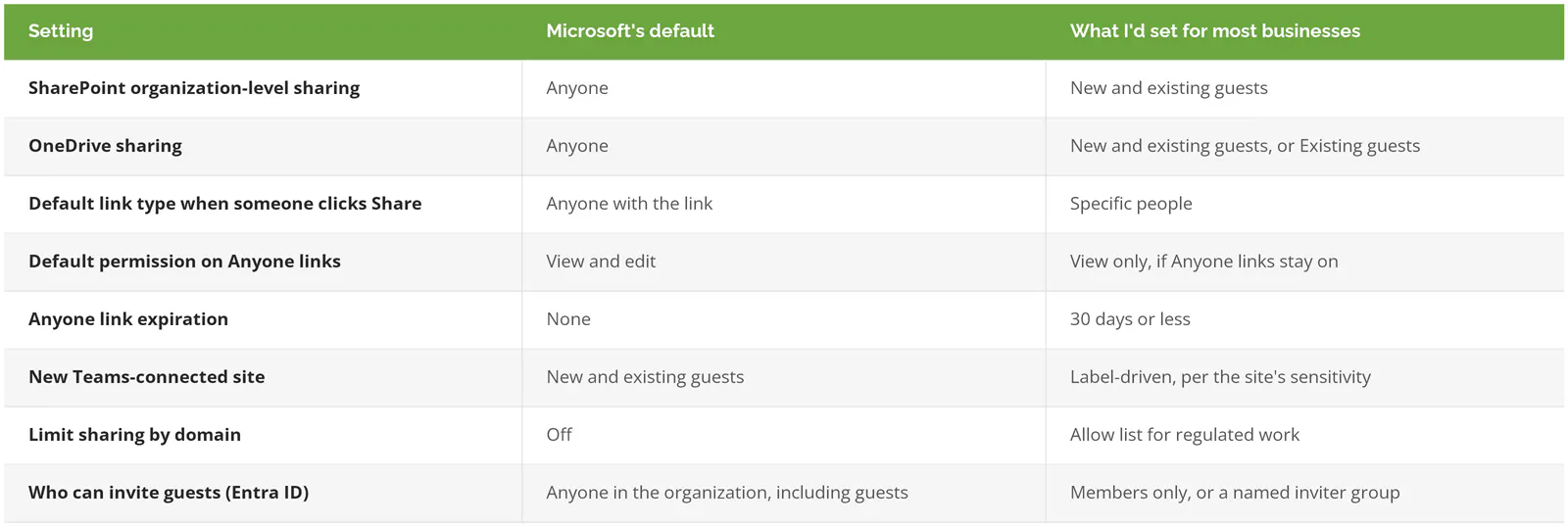
Watch the default link type. It's the quiet one. When an employee clicks Share and doesn't change anything, the link that goes out is the tenant default. If that default is Anyone with the link, a forwarded email hands the file to whoever receives it, with no sign-in and no record of who opened it. The employee didn't make a risky choice. They accepted the one the tenant offered.
It adds up. In a first-half 2025 analysis reported by Help Net Security, Concentric AI found an average of 3 million sensitive data records shared externally, more than half of all shared files, and 73% of sensitive data shared outside the organization at financial services firms. That's a data security vendor's own customer data, so read it as a signal about direction, not a census.
The guest-invite row at the bottom of that table surprises people. By default, all users in your organization, including existing guests, can invite new guests. A guest can invite a guest. Whether that's fine depends on your business, but it should be a choice somebody made.
A Lockdown Order That Doesn't Break Client Work
Order matters because each change affects people mid-project. Start with visibility, then tighten the ceiling, then carve out exceptions for the work that genuinely needs them.
- See what's already out there. In the SharePoint admin center, Reports, then Data access governance, the sharing links report shows which sites created the most Anyone, organization-wide, and specific-people links in the last 28 days. The report needs SharePoint Advanced Management or Microsoft 365 E5. Tenants without SharePoint Advanced Management have to switch on data collection first, and the report fills in 24 hours later. Do that this week, even if you change nothing else.
- Decide who can invite guests. Move the Entra guest invite setting off the default so that only members, or only a group you name, can bring outsiders in.
- Lower the SharePoint ceiling. Setting the organization level to New and existing guests turns off Anyone links everywhere and makes every outside person sign in or enter a one-time code. If one site truly needs Anyone links, for a public price list, say, the organization level has to stay at Anyone, because a site can't be looser than the org. Set every other site to New and existing guests instead, and limit Anyone links to view-only with a short expiration. And before you flip anything, know this. Guests typically lose access within an hour of a restriction, per Microsoft's sharing settings guide, so tell project leads first.
- Change the default link to Specific people. It costs nothing. And it changes what the Share button hands out when nobody touches the dropdown.
- Put the sensitive material somewhere sharing is off. HR files, finance, M&A, anything under a client confidentiality clause. A dedicated site with external sharing set to Only people in your organization is cleaner than trying to police individual files inside a busy client-facing team where a dozen people share things every day.
- Add a domain allow list if your outside collaborators are a known set of companies. One catch. Domain lists only govern sharing with guests, so Anyone links walk right past them unless you've turned those off in step 3.
- Set guest access to expire. SharePoint can end a guest's access to a site after a number of days you choose, and site owners can renew it for the people still working with you.
- Require MFA for guests. A guest account is a sign-in to your tenant, and it deserves the same scrutiny as an employee's. Our guide to Conditional Access policies in Microsoft 365 covers the guest and external-user policies worth turning on.
At a 60-person engineering firm, steps 1 to 4 fit in an afternoon. Step 5 is the one that takes real time, because it means deciding, folder by folder, what counts as sensitive, and that's a conversation with department heads, not a settings change.
Where Sensitivity Labels and Teams DLP Fit
Settings set the ceiling for everyone. Sensitivity labels let you set a different ceiling per team or site, and data loss prevention (DLP) looks at what's inside the files and messages themselves.
A sensitivity label applied to a team or site, sometimes called a container label, can lock its privacy setting, control whether owners can add guests, set the site's external sharing level, and limit access from unmanaged devices. Label a team Confidential and it can carry Only people in your organization with it, no matter who created the team.
Two quirks catch people. Files inside a labeled team don't inherit the label, so a document still needs its own label if you want encryption or a visual marking on it, which means a Confidential team can hold unlabeled files that travel anywhere once someone downloads them. And publishing the external sharing options in a label hands that control to site owners, who can loosen a site by switching its label. Microsoft says so directly. Worth deciding whether you're comfortable with that before you publish.
DLP sits a layer down, inspecting content. A Teams DLP policy can block a message containing account numbers from reaching an outside chat. There's a scoping trap, though. A policy scoped to individual user accounts doesn't cover channel messages, and our breakdown of the Teams gaps in Microsoft 365 DLP walks through that one, along with which licenses include Teams DLP at all. For the build itself, the Microsoft Purview DLP setup guide goes step by step.
Cleaning Up the Guests You Already Have
Every tenant that's had guest access on for a few years has leftovers. A contractor from a 2023 project. A client's former employee. A personal Gmail address somebody added for a quick review.
Microsoft's tool for this is the Entra access review. You pick the teams or groups, choose who reviews each guest (the team owner, or the guests themselves), and decide what happens to guests nobody vouches for. Configured for selected teams and groups, a review can block a denied guest from signing in for 30 days and then delete the account. The 30-day gap is useful. If someone was removed by mistake, you hear about it before the account is gone.
Licensing is the catch. Access reviews need Microsoft Entra ID P2 or Entra ID Governance, and Business Premium includes neither. Without them, the manual version still works. Export the guest list from the Microsoft Entra admin center, sort by last sign-in, and ask each team owner about anything older than 90 days, starting with personal addresses on Gmail or Outlook.com, since those are the hardest to tie back to a real business relationship. Slower. It works.
Skip Most of This If You Never Share Outside
If nobody at your company collaborates with outside people in Teams or SharePoint, most of this post is more than you need. Set SharePoint and OneDrive to Only people in your organization, turn Teams guest access off, and switch off file sharing in external chats before late October.
That's three changes. Done.
Businesses that need the full sequence are the ones where outside collaboration is the work itself. Law firms exchanging drafts with opposing counsel. Manufacturers sharing drawings with suppliers. Accounting firms collecting client documents every spring. For them, turning sharing off isn't an option, so the job is making every door a deliberate one.
If you only do one thing before the October rollout, open the SharePoint sharing page and read the two sharing sliders at the top. They'll tell you more about your real exposure than any Teams setting will.
Consilien is a managed IT and cybersecurity provider that configures and runs Microsoft 365 security for businesses nationwide, including SharePoint sharing, guest governance, and managed DLP. If you'd like a second set of eyes on your sharing settings before the default changes, speak to a Microsoft 365 security expert.