Microsoft Purview DLP: Setup and Policy Guide
Microsoft Purview DLP is the data loss prevention built into Microsoft 365. Setup runs in four stages. Confirm licensing, assign admin roles, build one policy in simulation mode, then tune before you enforce. Endpoint and Teams coverage need E5-tier licensing.
Table of Contents
The setup itself takes an afternoon. The tuning takes six weeks, and that part is what decides whether the program is still running next quarter. This guide walks through the order Microsoft actually recommends, the licensing that gates each piece, and the three places a first policy usually goes sideways. It is the build view of what our data loss prevention services team does inside client tenants.
What Purview DLP Does, in Plain Terms
Microsoft Purview is the console inside Microsoft 365 where data protection and compliance settings live. Data loss prevention, or DLP, is the part of it that watches for sensitive information leaving through email, files, chat, and endpoints, and decides whether to let that happen. If you already run Microsoft 365, you own some version of it. Whether you own the version you actually need is a separate question, and it is the one this guide starts with.
Three pieces do the work, and they get confused constantly.
A sensitive information type, which Microsoft shortens to SIT, is a pattern matcher. It knows what a credit card number looks like, what a Social Security number looks like, what a routing number looks like. A sensitivity label is a tag someone applies to a file or an email. The tag travels with the document, and it can carry encryption and visual markings along with it. A policy tip is the yellow banner that appears in Outlook or Word telling a user that what they are about to do trips a rule.
Patterns find the data. Labels describe it. Tips talk to the person. A DLP policy is the thing that ties all three together and decides what happens next.
Check What Your Licenses Actually Cover
Licensing usually gets checked last, if it gets checked at all, and that ordering produces a design that cannot be built. DLP in Microsoft 365 is not one product with one price. It is four or five capabilities sitting behind different license tiers, and the split does not follow the pattern people expect.
Here is what Microsoft own Purview service description says, as of its August 2026 revision.
- DLP for Exchange Online, SharePoint, and OneDrive. Included with Microsoft 365 E3, E5, G3, and G5, Business Premium, Office 365 E3 and E5, Exchange Online Plan 2, and SharePoint Plan 2. No upgrade needed.
- DLP for Teams chat and channel messages. Not in E3. Requires Microsoft 365 E5, A5, or G5, the Purview Suite, or the Information Protection and Governance add-on.
- Endpoint DLP for Windows and macOS devices. Not in E3. Same E5-tier requirement.
- Advanced policy tips in the Outlook desktop app. Basic tips work broadly. Advanced conditions and the oversharing dialog need the E5 tier.
- DLP that stops Copilot processing a file or email. Not in E3, and not in Business Premium. E5 tier only.
- DLP that inspects Copilot prompts. Available to all Microsoft Copilot and Copilot Chat users, at any tier.
- Inline DLP for cloud apps in the browser or across the network. Neither tier includes it. Pay-as-you-go, billed through a linked Azure subscription.
The Teams line is the one worth re-reading. An organization on Microsoft 365 E3 can block a credit card number in an email and can do nothing about the same number pasted into a Teams chat. Nothing in the portal warns you. The Teams location is simply there, selectable, and quiet.
Watch the product names too. Office 365 E5 is not the same thing as Microsoft 365 E5, and it does not appear in the Endpoint DLP entitlement table at all, so it is worth confirming which of the two you actually hold before anyone scopes a device rollout. If you are weighing Purview against Forcepoint, Proofpoint, or Safetica before committing, our breakdown of the best DLP solutions for 2026 puts the licensing math next to the alternatives.
Roles, Scope, and a Policy Intent Statement
Before the portal, three things.
First, permissions. The account building policies has to sit in one of five role groups, per Microsoft create and deploy documentation. Compliance administrator, Compliance data administrator, Information Protection, Information Protection Admin, or Security administrator. Global admin works, but it is the wrong habit. Use Information Protection Admin so a mistake in one policy cannot reach the rest of the environment.
Second, decide where the policy applies. Microsoft calls these locations, and a policy can be scoped to Exchange Online, SharePoint, OneDrive, Teams chat and channel messages, Devices, on-premises repositories, Fabric and Power BI, managed and unmanaged cloud apps, and Microsoft 365 Copilot. Pick one to start with rather than all of them.
Third, write down what the policy is supposed to do, in a sentence, before you configure anything. Microsoft calls this a policy intent statement, and it reads like paperwork until you try to build without one. "Block external email containing five or more customer account numbers, with user override, for the finance department" is a sentence that maps cleanly onto a configuration. "Protect customer data" maps onto nothing, and a policy built from it will match half your tenant, meaning most of your Microsoft 365 environment.
Onboarding Devices for Endpoint DLP
Endpoint DLP watches file activity on laptops and desktops. Copying to a USB drive, uploading to a personal Dropbox, printing, pasting into a browser. None of it works until the device is onboarded, which means registered with the service so it reports activity back.
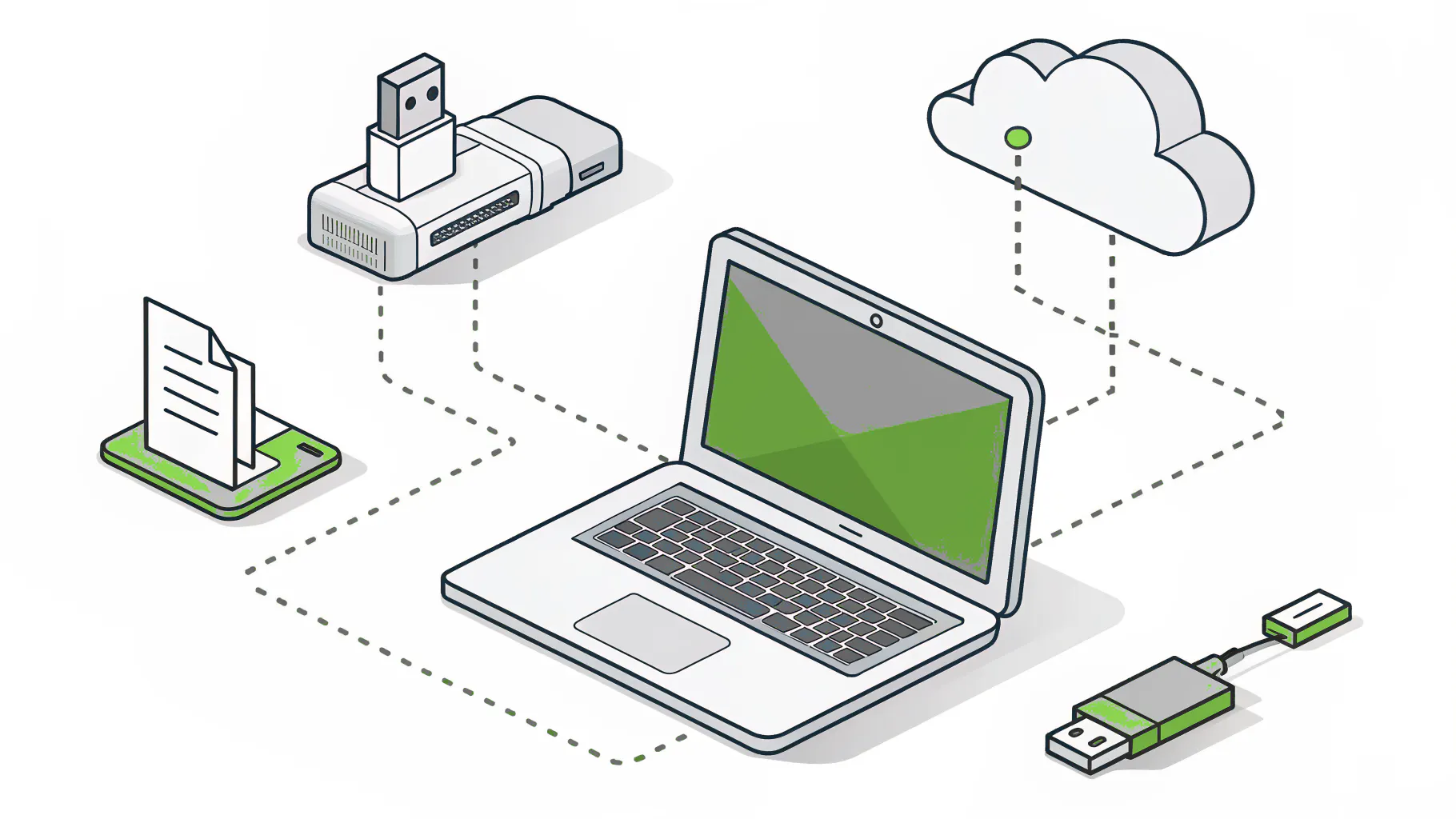
Endpoint DLP supports Windows 10, Windows 11, and the three most recent macOS releases, per Microsoft endpoint DLP setup guide. Onboarding happens through Intune, Group Policy, Configuration Manager, or a local script. Intune is the right answer for most fleets. The local script is fine for a pilot of 5 and terrible for a rollout of 500.
Two things to know before you start. Devices need to reach the cloud DLP service, so if you run a proxy, that gets configured first or the device onboards and then reports nothing. And macOS 27 changed the permission model, so if any of your fleet is on it, read Microsoft updated guidance rather than assuming parity with Windows.
Browsers add another layer. Edge for Business is covered natively. Chrome and Firefox need the Microsoft Purview browser extension installed, and there is a behavior worth knowing about. If you add Chrome to the unallowed apps list but the extension is installed, the block does not apply. The extension takes precedence. People find this during an incident review, which is a bad time to learn it.
Building Your First Policy, Step by Step
Start with one policy, narrow enough that you can defend every setting in it during a meeting.
- Open the Purview portal and go to Data Loss Prevention, then Policies, then Create policy.
- Pick a template or start custom. Templates for PCI DSS, GDPR, and similar frameworks give you a working starting point. They are starting points, not answers, and every one of them needs tuning against how your business actually moves data.
- Name it something a future admin can read. "Finance, external email, account numbers, v1" beats "DLP Policy 3."
- Choose your locations. One, if this is your first.
- Set conditions. Content contains, sender is, recipient domain is, document size exceeds. This is where the sensitive information type goes in, along with its confidence level and instance count.
- Set actions. Start with Audit only, which lets the activity happen and records it. For device policies the equivalent is Allow.
- Set the policy state to Keep it off. That is a deliberate state in the product, and it is the one you want here.
- Give the rule a priority. When two policies match the same item, priority decides which one wins, and a tenant that accumulates a dozen overlapping rules without anyone tracking priority will eventually enforce something nobody intended on a file nobody was thinking about.
- Review it with whoever owns the process you are about to interrupt. Sales leadership, if this touches customer email. Finance, if it touches invoices.
Then leave it off.
Where Policies Go Wrong, Confidence and Instance Count
A sensitive information type has two dials, and both of them are set wrong by default for most environments.
Confidence level is how certain the matcher is. A high-confidence credit card match means the number passed a checksum and there is a supporting keyword nearby. A low-confidence match means the pattern looked roughly right. Low confidence catches more and is wrong constantly. Start at high.
Instance count is how many matches have to appear in one item before the rule fires, and it is the dial that decides whether your team trusts the tool. Set the minimum to 1 on a Social Security number and the policy fires on the HR template that contains a fake example SSN, on the policy document that explains what an SSN is, and on the offer letter for one new hire. Set the minimum to 5 and those three disappear while the spreadsheet with 2,400 records still trips.
Nobody steals one record at a time. They export the whole table.
Where patterns are not enough, Microsoft offers two other classification methods. A trainable classifier learns a document type from examples, which is how you catch a statement of work or a set of board minutes that follows no fixed pattern. Exact Data Match compares content against a hashed copy of your own reference list, so a customer ID that looks like any other six-digit number only matches when it is genuinely one of yours. EDM takes real setup effort. For a company with a defined list of sensitive identifiers, it is the difference between a program people trust and one they route around.
Simulation Mode, and Where It Misleads You
Simulation mode runs the policy as though it were enforcing, without enforcing anything. Matches and alerts land in a separate dashboard so they do not contaminate your production alerts. It is the single most useful control in the product, and running a new policy without it is how programs quietly get switched off by month three. That rollout sequence is covered in more depth in our guide to data loss prevention best practices.
There are limits, and Microsoft documents them plainly in the simulation mode reference. They are just easy to miss.
First, the window closes on you. A simulation runs for up to 15 days, and the results are kept for 30. So a policy you simulate in March and revisit in May has no data left to revisit.
The second limit matters more. For SharePoint and OneDrive, simulation evaluates everything, existing files included. For Exchange, Teams, and Devices, it only evaluates items that are new during the simulation window. Your ten-year email archive is invisible to it. Run a two-week simulation on a quiet team in August and the numbers will look reassuring, right up until you enforce and catch the volume you never measured.
Third, simulation alerts stay in the simulation tab. They do not reach the DLP alerts console and they do not flow into the Microsoft Defender portal. If your security operations team watches Defender, they will not see any of this, which is worth telling them before the pilot starts rather than after.
Moving to Enforcement Without Breaking the Business
Microsoft describes three deployment axes, which are state, scope, and actions. The recommendation is to move all three gradually, starting from the least disruptive setting.
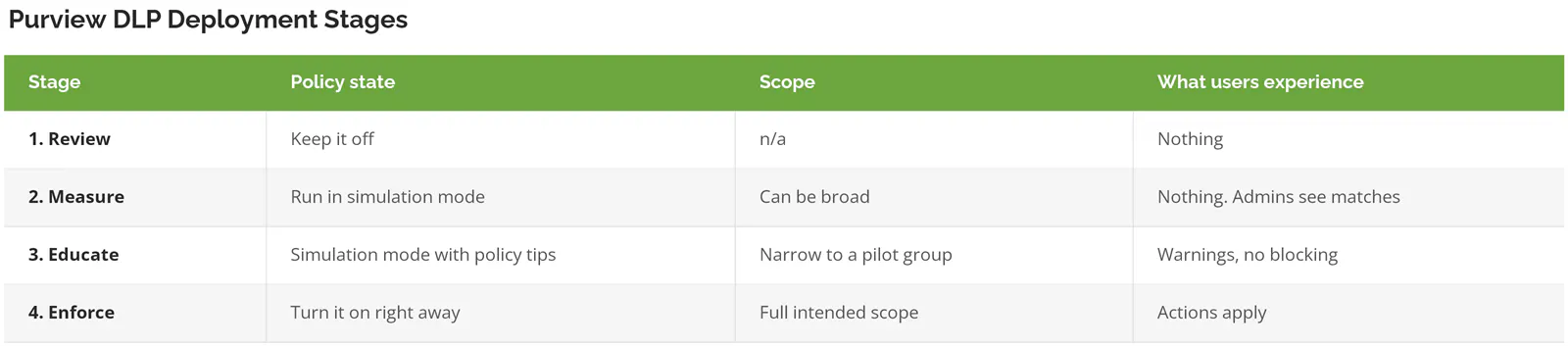
Actions ladder the same way. Audit only records and permits. Block with override stops the action but lets a user push past it with a written reason, and those reasons are the best tuning data you will get, because a person who overrides 15 times a week is telling you the policy misread their job. Block is absolute.

Budget time for propagation. A policy change does not take effect immediately. Expect roughly an hour, and Microsoft Teams guidance says to allow up to 24. During that window the policy is not catching what you built it to catch, which is worth knowing before you schedule a go-live for the morning of an audit.
The pilot group matters more than the technology. Pick the team that will complain loudly about a false positive on a Tuesday afternoon rather than the team that will quietly work around the tool and never mention it, because the complaints are the tuning data and the workarounds are invisible until an auditor asks. Quiet pilots teach you nothing.
Where Purview DLP Stops
Purview is strong inside Microsoft 365 and thins out fast at the boundary.
Linux endpoints are not supported at all. macOS is supported but does not match Windows feature for feature. File servers, Salesforce, Slack, Box, and other software your business runs sit outside the default classification and enforcement scope, which means a manufacturer running a Microsoft front office over a Linux-heavy production floor can build a policy that looks complete in the portal while covering maybe half the places data actually moves. On-premises shared drives can be scanned, but labels do not apply to them the way they do in SharePoint.
The AI channel is moving quickly and unevenly. DLP for Microsoft 365 Copilot reached general availability in 2026, and prompt inspection is available broadly, but restricting what Copilot can process against a labeled file needs E5-tier licensing. Coverage of third-party AI tools depends on the browser, the device, and whether inline browser protection is switched on and billed. IBM 2026 Cost of a Data Breach report put the global average breach at $4.99 million, a record and a 12% jump, and reporting on the same study put unapproved AI tools in 43% of incidents, more than double the prior year. If Copilot is already deployed in your tenant, the permissions work comes before the DLP work, and we have written about what to lock down first with Copilot.
None of this makes Purview a bad choice. For a company already standardized on Microsoft 365, it is usually the right one. It just means the coverage map has edges, and you should draw them yourself rather than assume the license covers the whole business.
When Purview DLP Is the Wrong Starting Point
Skip this project, for now, if any of the following is true.
You do not know where your sensitive data lives. Classification comes first. A DLP policy pointed at an unmapped environment produces alert volume, not protection, and our overview of what data loss prevention is covers that groundwork.
Your critical systems are a mixed fleet with meaningful Linux or heavy non-Microsoft SaaS. You will buy a partial answer and still need a second tool.
Nobody owns alert review. A policy sitting in enforcement mode with no named person reading the output every day is not a control at all, it is an audit finding with a timestamp on it, and the finding reads worse than having no DLP because the organization documented an intent it then failed to operate. If you have one part-time IT generalist and no capacity to work a queue, fix that before you turn anything on.
A 30-Day Sequence That Works
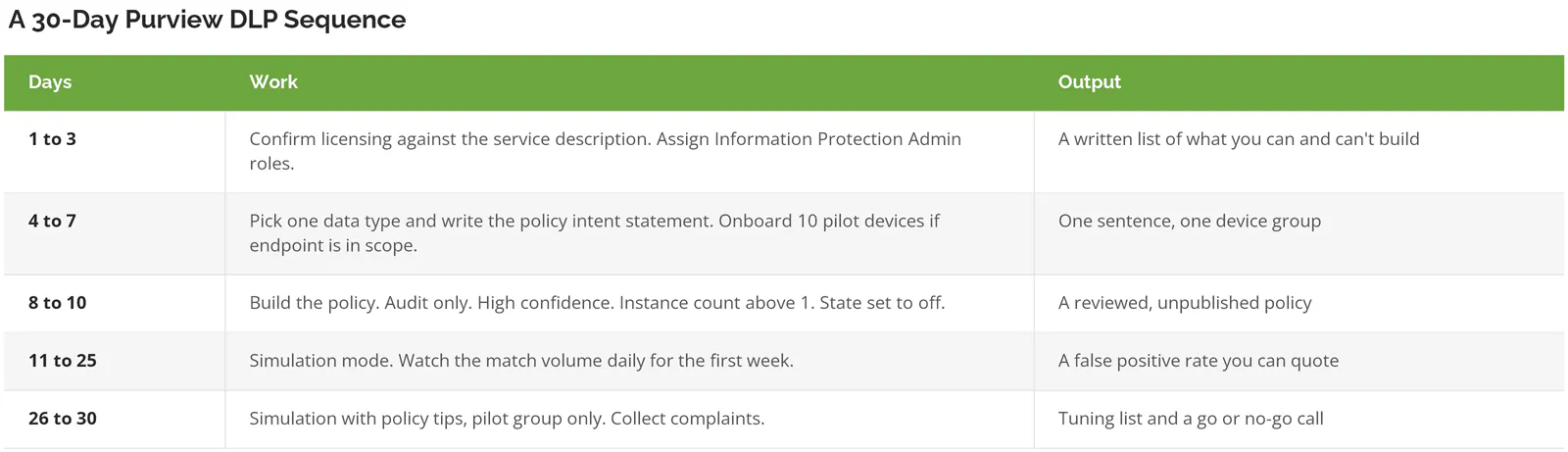
Enforcement lands in month two, not month one. A company that reaches day 30 with one well-tuned policy is in better shape than one that switched on forty templates in week one and spent the rest of the quarter walking them back.