DMARC, SPF and DKIM: The Email Authentication Setup Guide
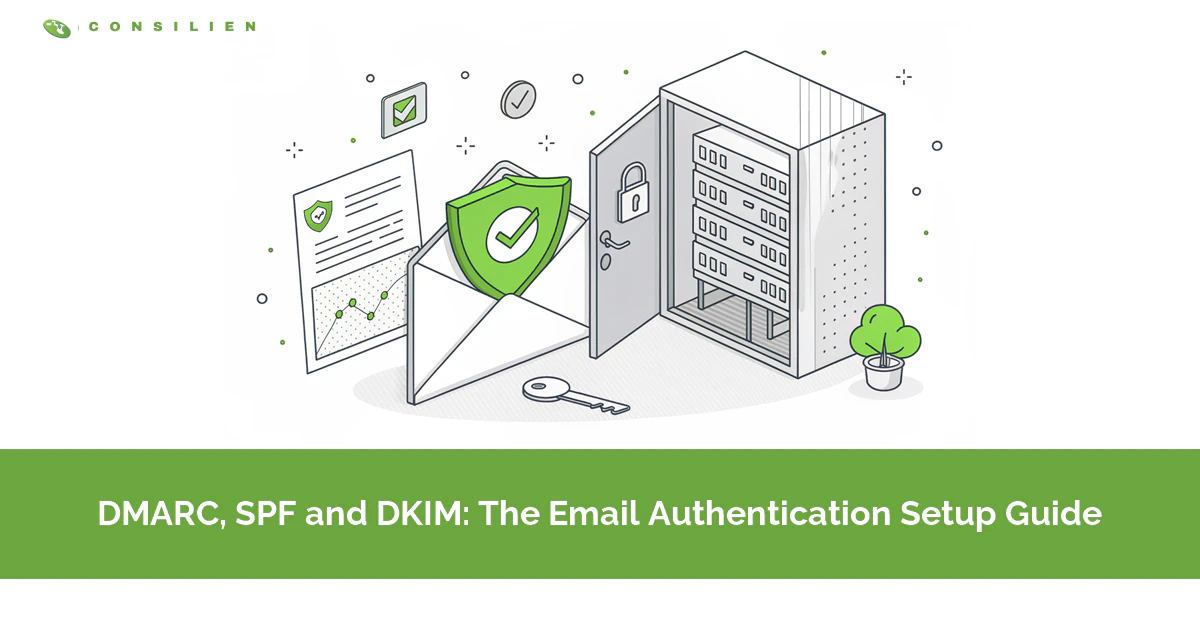
SPF lists the servers allowed to send your email. DKIM signs each message so tampering shows. DMARC checks that one of them matches your visible From address and tells receivers what to do when neither does.
Table of Contents
DMARC, SPF, and DKIM are three records in your domain's DNS, the public settings file the whole internet reads to find your website and your mail servers. Together they decide whether Gmail, Outlook, and every other inbox believe an email really came from you. They're the foundation of any serious email security services program. They cost nothing. Nothing but attention.
Attention runs short. EasyDMARC's 2026 adoption report looked at the top 1.8 million domains and found 52.1% publish a DMARC record, but only 411,935 of them, about 23%, tell receivers to quarantine or reject a fake. Everyone else has DMARC the way a building has a smoke detector with the battery pulled out. It's on the ceiling. It isn't doing anything.
The gap is widest where you'd expect. More than 80% of the Fortune 500 enforce DMARC, per the same report, while just over half of the Inc. 5000 still sit at monitor-only. Big companies have a mail team. Growing companies have whoever set up Microsoft 365 in 2019, and that person usually got SPF right, turned on DKIM for the main domain, published p=none because a blog post said to start there, and moved on to the next fire.
What Do SPF, DKIM and DMARC Actually Do?
SPF is a published list of servers allowed to send mail for your domain. DKIM is a digital signature stamped on each message. DMARC ties both to the From address people actually see and tells receivers what to do with a fake.
Picture a front door. SPF is the guest list. DKIM is the wax seal on the envelope. DMARC is the house rule telling the doorman what to do when someone shows up claiming to be you with neither. SPF and DKIM prove things. DMARC acts on the proof.

Each one alone has a hole you could drive a wire transfer through. SPF was published as RFC 7208 and DKIM as RFC 6376, both written well before anyone expected attackers to care about the difference between the address a mail server sees and the address a person reads in Outlook. That difference is exactly where spoofing lives. So what closes it?
Why Can SPF and DKIM Pass While DMARC Fails?
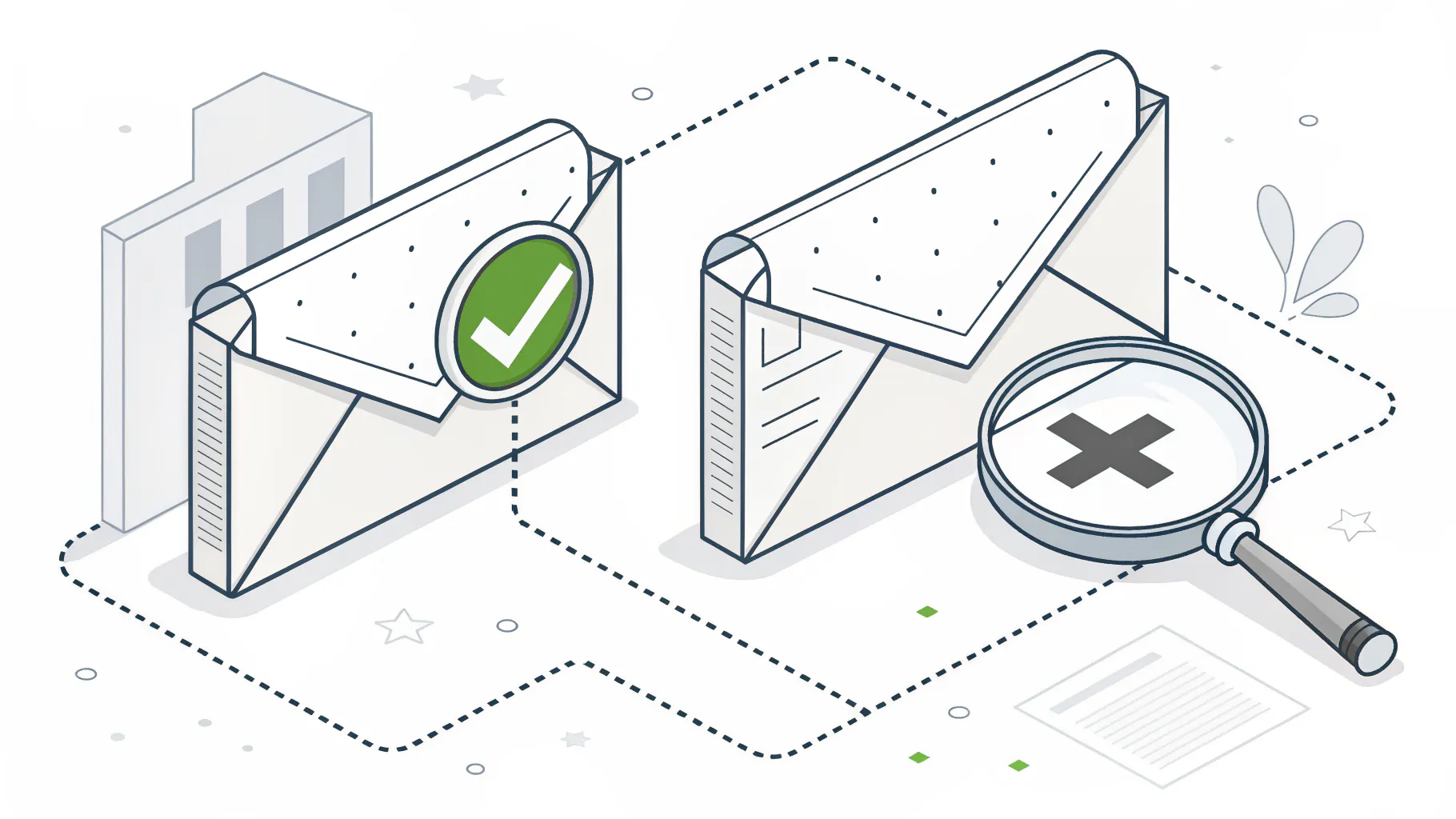
Because passing isn't the test. DMARC requires alignment, meaning the domain that passed SPF or DKIM must match the domain in the From address. A vendor sending as you under its own domain passes both checks and still fails DMARC.
Every email carries two sender addresses. One is the envelope sender, the return address mail servers use to hand the message along and route bounces back, and nobody reading the email ever sees it. The other is the From address shown in Outlook. SPF only checks the first. Just the first.
Say your invoicing platform sends from [email protected]. Behind the scenes, its envelope sender is bounces.vendor-mail.com, and it signs DKIM with its own domain, vendor-mail.com. SPF passes. For vendor-mail.com. DKIM passes. Also for vendor-mail.com. DMARC looks at the From line, sees yourcompany.com, finds no match, and fails the message.
Microsoft's DMARC troubleshooting guide lists this exact pattern first among common alignment failures. The fix is nearly always the same. Turn on custom DKIM signing inside the vendor's settings so it signs as yourcompany.com.
Leave alignment on relaxed, the default. Relaxed lets mail.yourcompany.com count as a match for yourcompany.com. Strict demands an exact match, which sounds safer right up until a legitimate system sending from a subdomain gets junked and someone in accounting loses an afternoon figuring out why customers never got their statements.
Step 1: Build Your SPF Record Without Hitting the 10-Lookup Limit
For a business that sends only through Microsoft 365, the whole SPF record is one line, published as a TXT record, a plain-text DNS entry, on your root domain. Microsoft's SPF documentation gives it as:
v=spf1 include:spf.protection.outlook.com -all
Nobody stays that simple. Marketing adds HubSpot. Finance moves invoicing to Bill.com. The website form sends through SendGrid, and the help desk tool wants in too. Each one arrives with instructions to add its own include to your SPF record. Each include costs DNS lookups.
RFC 7208 caps an SPF check at 10 DNS lookups. Go over and the check returns a permanent error. Receivers treat that as a failure. Every include, a, mx, exists, and redirect counts toward the cap, and an include that points to a record with 3 more includes nested inside it costs 4 lookups, not 1. Raw ip4 and ip6 addresses cost nothing. Somewhere around the sixth or seventh vendor, a record that looks fine on paper quietly stops working for everyone.
Fixes, roughly in order of how often they're the right call:
- Count before you add. Free lookup checkers will total your record, nested includes and all, in about 10 seconds.
- Move bulk and marketing senders to a subdomain like news.yourcompany.com, where each gets its own 10-lookup budget and a bad campaign can't drag down the reputation of mail from your staff.
- Includes for tools you canceled? Kill them. A former email platform left in the record since 2021 still eats lookups today.
- Never publish a second SPF record. Two records on one domain is a permanent error. It happens every time someone pastes a vendor's full record instead of merging it into yours.
- Flatten carefully, if at all. Replacing a vendor's include with its raw IP addresses saves lookups, but Microsoft specifically warns against flattening its own include because its sending IPs change often.
End the record with -all, the hard fail. Microsoft recommends it for any domain with DKIM and DMARC in place, and its documentation explains why the soft version, ~all, backfires, because DMARC effectively ignores a soft SPF failure when the message also lacks a DKIM signature, which is precisely what a spoofed message looks like.
Step 2: Turn On DKIM for Your Own Domain
DKIM only helps DMARC when the signature carries your name. Microsoft's DKIM guide is blunt about it. A message needs to be signed by the domain in its From address. Until you turn DKIM on for yourcompany.com, your mail isn't signed as yourcompany.com. At best it carries a signature from your tenant's built-in address, something like yourcompany.onmicrosoft.com, and Microsoft's alignment table shows that pairing failing DMARC every time. Signed, technically. By a stranger.
Fixing it takes two CNAME records, DNS entries that point one name at another, published at selector1._domainkey and selector2._domainkey on your domain. You'll find the exact values in the Microsoft Defender portal under email authentication settings. Publish both, give DNS anywhere from a few minutes to a few hours to catch up depending on your provider's settings, and then go back to the Defender portal and flip DKIM signing on for the domain.
Why two? Rotation. One selector signs today while the other sits ready for the next key. When you rotate, Microsoft switches to the standby and retires the old one, with no gap in signing. Once a year is a sensible rhythm, and sooner if someone with admin access to your mail leaves on bad terms.
Then repeat it for every outside service that sends as you. Your CRM. Your payroll platform. Your e-signature tool. Each one publishes its own DKIM record for your domain, and each one is a separate checkbox somebody has to find in a settings screen they've never opened before and will never open again. Where a service offers a choice of key length, take 2048 bits. RFC 8301 sets 1024 bits as the floor and recommends 2048, and older DKIM setups sometimes still run the shorter key, so check the record the vendor hands you rather than assuming.
Step 3: Publish DMARC at p=none and Actually Read the Reports
Start with a monitor-only DMARC record at _dmarc.yourcompany.com. A policy of p=none blocks nothing. What it does is make Gmail, Yahoo, Microsoft, and other receivers send you daily reports listing every server that sent mail as your domain.
v=DMARC1; p=none; rua=mailto:[email protected]
Your rua address is where those aggregate reports go. Point it at a dedicated shared mailbox. Never a person's inbox. The reports arrive as compressed XML files (raw data meant for software, not people), one per receiver per day, and in raw form they're unreadable to anyone who doesn't enjoy reading XML, so run them through a DMARC reporting service that turns them into a dashboard. Microsoft keeps a list of them in its security partner catalog.
What are you looking for? Three patterns. Three different responses.
- Services you recognize, with SPF passing but alignment failing. That's a vendor sending as you under its own domain. Fix its DKIM.
- Unknown IP addresses sending hundreds of messages, all failing. Somebody is spoofing you, and once your policy moves to quarantine or reject, receivers will junk or refuse those messages on your behalf, which is the entire point of this exercise, so there's nothing on your end to fix.
- Failures from mailing lists and forwarders? Mostly normal. More on that below.
Two quirks worth knowing before you panic over gaps. Microsoft says report coverage typically reaches 70 to 90% of your total mail volume, because not every receiver sends reports. And Microsoft 365 itself never sends forensic reports, the per-message failure detail that the ruf tag requests, so leave ruf off at the start. Aggregates are enough.
Stay at p=none for at least one full business cycle. Month-end close. A payroll run. The quarterly invoice batch. The report is where the surprises live, usually in the form of a marketing tool from two agencies ago that still sends a newsletter nobody on staff has read since the agency that set it up stopped returning calls.
Step 4: How Do You Get From p=none to p=reject Without Blocking Your Own Invoices?
Slowly. One domain at a time. Microsoft's own rollout order is to start with a low-volume subdomain, step from p=none to p=quarantine to p=reject there, repeat for each busier subdomain, and change your main domain last. Quarantine sends failing mail to junk. Reject tells the receiver to refuse it.
For years the standard way to soften each step was the pct tag, which applied your policy to only a percentage of failing mail. Microsoft's DMARC guide, last updated in July 2026, still walks you through pct=10, 25, 50, 75, and 100.
That advice is now out of date. In May 2026 the IETF, the body that writes internet standards, published RFC 9989, the updated DMARC standard sometimes called DMARCbis, which replaces the original 2015 specification and removes pct entirely. Existing records don't break. The v=DMARC1 tag is unchanged. But a receiver built to the new standard has no instruction for pct, so there's no guarantee your 25% ramp means anything to it.
Its replacement is a test flag, t=y. With t=y, a receiver applies one step softer than the policy you published. Reject gets treated as quarantine. Quarantine gets treated as none. A cautious ramp under the new rules looks like this:
v=DMARC1; p=quarantine; t=y; rua=mailto:[email protected]
v=DMARC1; p=quarantine; rua=mailto:[email protected]
v=DMARC1; p=reject; t=y; rua=mailto:[email protected]
v=DMARC1; p=reject; rua=mailto:[email protected]
Blunter than a percentage dial. I don't miss pct much, though, because the subdomain-by-subdomain order was always doing most of the real risk control.
Forwarding is the one genuine casualty. When someone auto-forwards your email, or a mailing list rewrites it, SPF breaks because the message now arrives from the forwarder's server, and DKIM can break too if the list tacks a footer onto the bottom. ARC, short for Authenticated Received Chain, is the patch. A forwarder that supports it records that the message passed authentication before it touched it. Google publishes its own best practices for forwarding email to Gmail, and Microsoft 365 lets you mark services you trust as trusted ARC sealers so their modified mail doesn't fail on arrival.
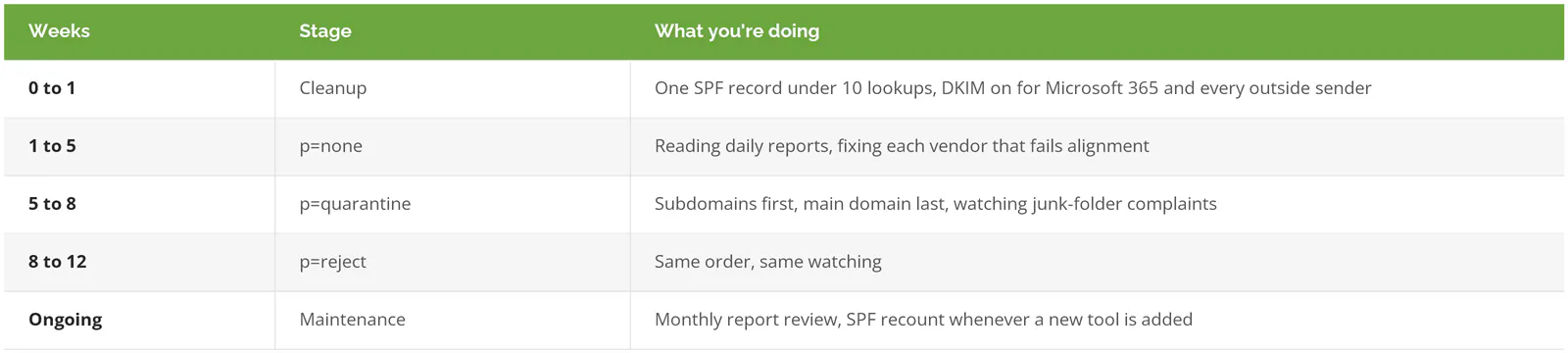
Plan on 6 to 12 weeks for a typical business. If Microsoft 365 is the only thing sending as your domain and 3 weeks of reports prove it, skip the ceremony and get to reject in a month. The timeline exists to find senders you didn't know about. No surprises, no reason to wait.
What Should You Do With Domains That Never Send Email?
Lock them. Any domain you own but never send from should publish an SPF record allowing no one and a DMARC record rejecting everything. About 10 minutes of work. It closes a spoofing path almost nobody checks.
Think about the extra domains a business collects over a decade or two, like the .net version bought defensively in 2014, the old brand name from before the rebrand, and the campaign domain from a trade show three years ago that still auto-renews on somebody's corporate card. Attackers like these. Nobody's watching them. Publish two TXT records on each:
v=spf1 -all
_dmarc   v=DMARC1; p=reject;
Microsoft adds one more that's easy to miss. If you don't send mail from your tenant's built-in yourcompany.onmicrosoft.com address, publish a p=reject DMARC record for it too, which you do inside the Microsoft 365 admin center rather than at your DNS host.
RFC 9989 also adds an np tag. It's a separate policy for subdomains that don't exist at all. Setting np=reject on your main record tells receivers to refuse mail from invented addresses like billing.yourcompany.com when you've never created that subdomain.
What Do Google, Yahoo and Microsoft Require Now?
If you send more than 5,000 messages a day to their users, all three require SPF, DKIM, and a DMARC record that passes with alignment. A p=none policy satisfies every one of them. It doesn't stop a single spoofed email.
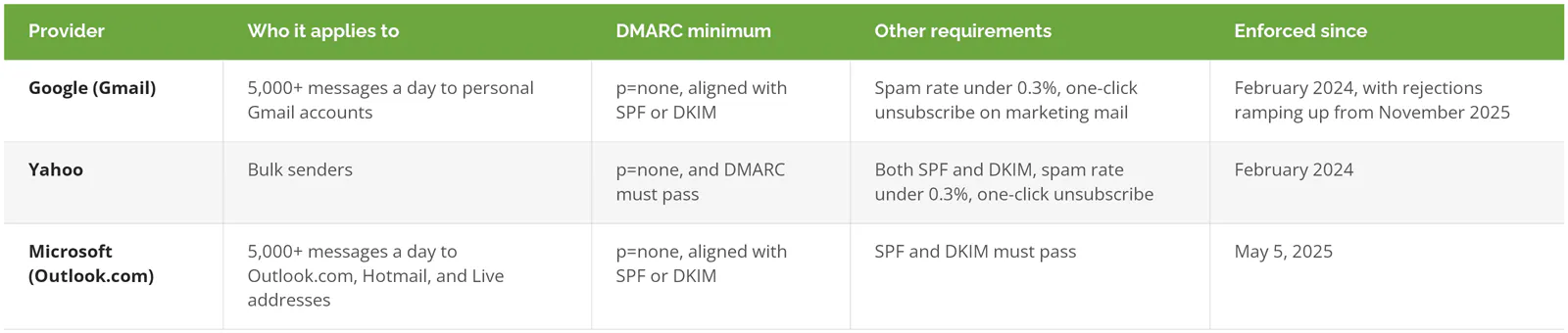
Sources for the table are Google's sender guidelines and its enforcement FAQ, Yahoo's Sender Hub, and Microsoft's announcement for high-volume senders. Google also expects every sender, of any size, to have SPF or DKIM in place.
These are deliverability rules. They exist to keep spam out of the providers' own inboxes, and they set the floor at p=none on purpose, so millions of senders could comply without breaking anything. Gmail compliance tells you your newsletter will arrive. It tells you nothing about whether someone can send your controller a fake wire request from your domain tomorrow morning at 8:15, right before the payment run. Compliance and protection keep getting treated as the same thing. In email authentication, one tag separates them.
What Won't DMARC Stop?
Business email compromise, or BEC, is the fraud where someone poses as an executive or supplier and asks for a payment. The FBI's 2025 Internet Crime Report counted $3,046,598,558 in reported BEC losses last year, up from $2.77 billion in 2024. DMARC at p=reject shuts down one version of that fraud. Only one.
It stops mail that forges your exact domain. It does nothing about attacks that simply avoid forging your domain. Attackers noticed. What slips past:
- Lookalike domains. A domain like yourcompany-invoices.com, or a swapped letter that reads the same at a glance, has its own perfectly valid SPF, DKIM, and DMARC. Every check passes, because the attacker owns that domain.
- A real mailbox that got hacked. When the attacker logs into your supplier's actual account and replies in an existing thread, the message is genuinely from them. Catching that depends on how your Microsoft 365 email security is configured, not on any DNS record.
- Your CEO's name in front of a free Gmail address. Google's authentication, perfectly valid.
Each one needs a different control. Impersonation protection in Microsoft Defender for Office 365 flags lookalike domains and the names of your executives. Multi-factor sign-in, enforced through Conditional Access policies, makes a stolen password far less useful. And a finance rule that any change to payment details gets confirmed by calling a number already on file, never a number printed in the email asking for the change, stops the wire even when every filter in the building misses. The FBI's own breakdown of the two types of business email compromise makes the same point about process over technology. If you're weighing a dedicated filtering layer on top, the email security platforms compared in our roundup cover the main options.
None of that makes DMARC optional. It's the first lock, not the only one.
Who Should Own Email Authentication After Setup?
One named person, with a monthly calendar reminder. Email authentication decays quietly. The decay almost always starts with a well-meaning change nobody reviewed.
A new marketing coordinator signs up for a webinar platform, and the setup wizard says to add a TXT record, so the coordinator emails the website agency, who pastes the vendor's entire SPF record as a second record instead of merging it into the first. Now the domain has two SPF records. Both return an error. Every email the company sends fails SPF. With DKIM configured, DMARC still passes and nobody notices for months. Without it, invoices start landing in junk folders, and the first clue is a customer asking why they never got a statement.
So give DNS changes an owner and a short routine:
- Weekly report review while you're rolling out, monthly after that, which is also the cadence Microsoft suggests once things are stable.
- An SPF lookup recount every time a new sending tool is approved.
- DKIM key rotation once a year.
- When you cancel a vendor, remove its include and its DKIM record the same week.
If you've got an in-house mail administrator who already reads the reports every month, you don't need outside help with this piece. Plenty of businesses don't have one. Setup is usually the easy part. It's the upkeep that lapses, a year later, when nobody remembers who owns the DNS login.
Consilien is a managed IT and cybersecurity company that runs Microsoft 365 for businesses nationwide. Email security is part of IC24 Managed IT and IC24 Co-Managed IT, with authentication enforced to reject rather than left at monitor, plus Defender policy tuning and SOC-backed monitoring. If you want to know how far your domain is from p=reject, we'll review your SPF, DKIM, and DMARC setup with you and show you where the gaps are, including senders nobody on your team remembers approving. Speak to an Email Security Expert.